Good controller settings make aiming smoother and movement more precise. The best values depend on your controller, so measure first.
These steps apply to most shooters, racing and action games on PC.
What you need
- Your controller, connected by USB if possible
- The game's controller settings, or Steam Input
1Measure your sticks
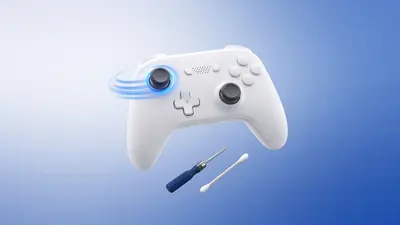
Run the rest test in our deadzone test. It suggests the smallest safe inner deadzone for each stick.
Use that value in the game instead of the default.
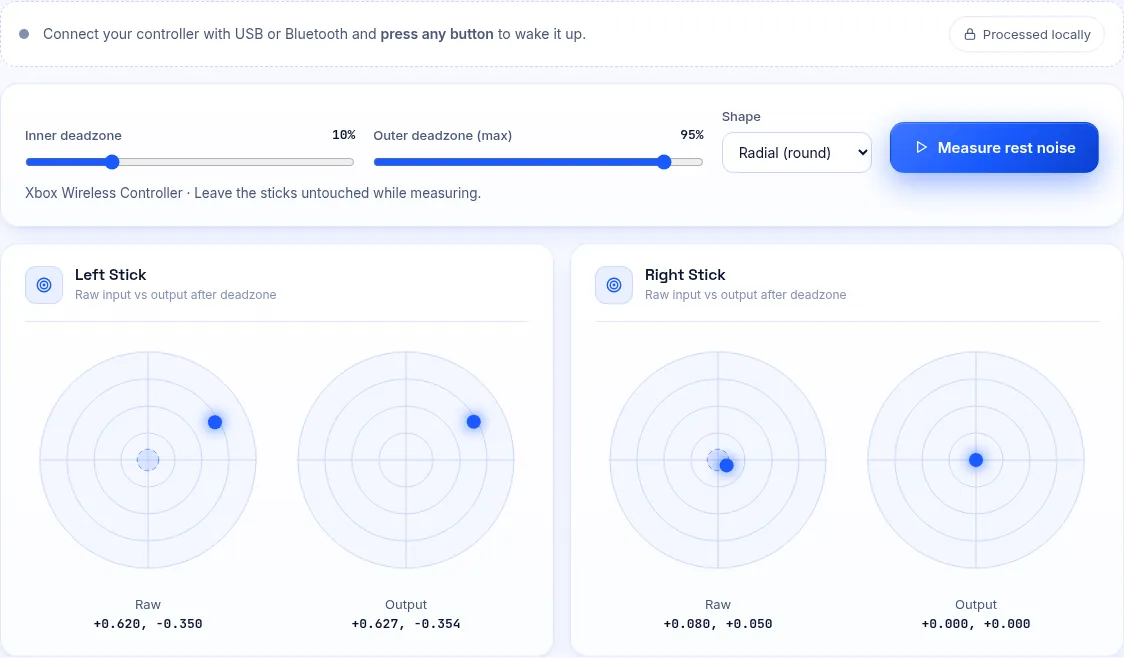
Find the smallest deadzone that hides rest noise. 2Choose a response curve
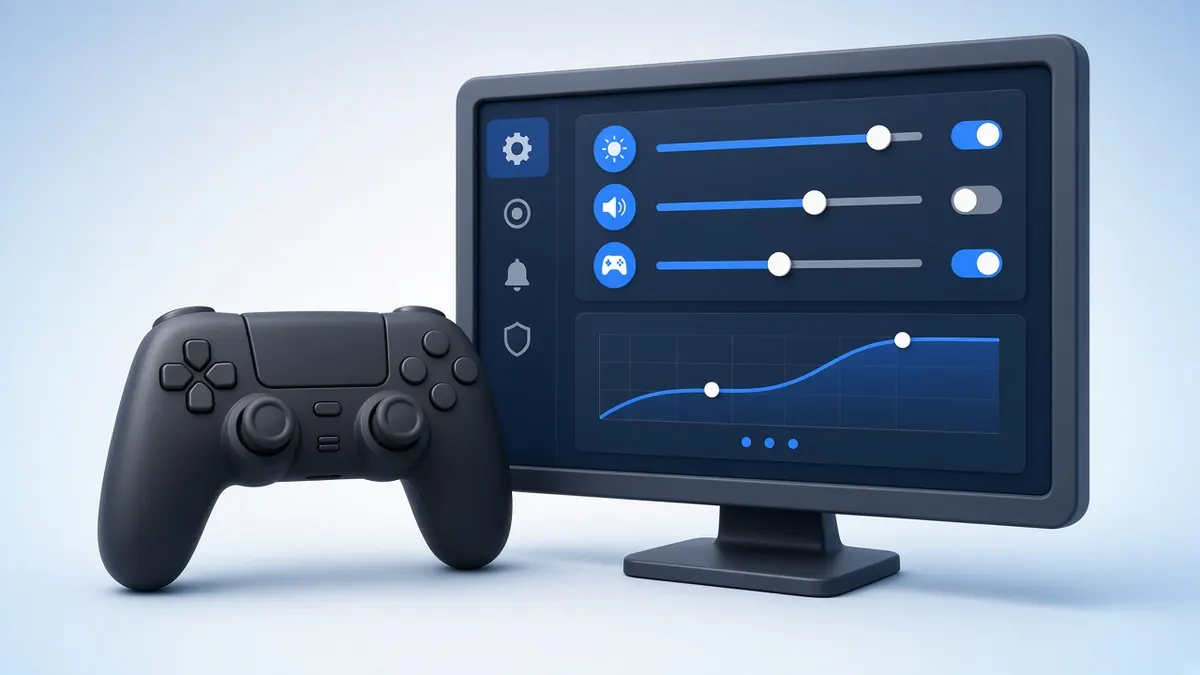
A linear curve maps stick movement directly. An exponential curve gives finer control near the centre and faster turns at the edge.
Start with the game's default curve and change one setting at a time.
Linear vs exponential response curves. 3Set sensitivity
Lower sensitivity aids precision; higher sensitivity helps fast turns. Many players keep vertical slightly lower than horizontal.
Adjust in small steps over several sessions.
4Check polling and connection
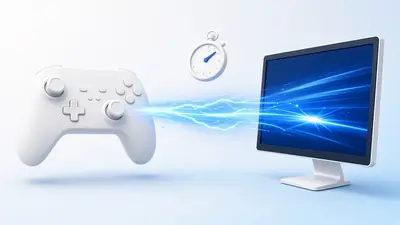
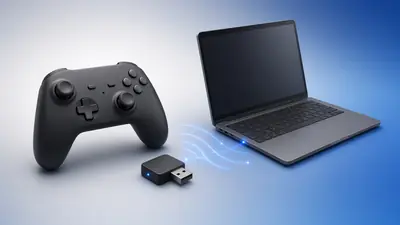
Use our polling rate test to compare USB and wireless. A steady rate matters more than a peak number.
Use a cable for competitive play.
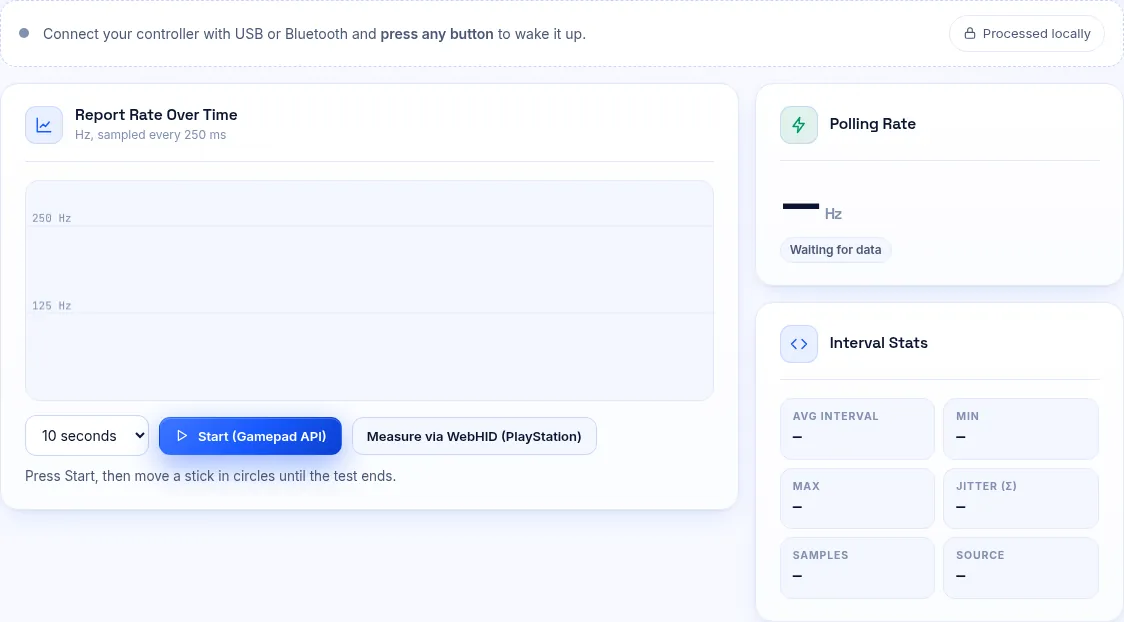
Compare report rates across connections. 5Tune vibration and triggers
Strong rumble can disturb aim. Lower it, or turn it off in competitive games.
Some games let you set a trigger deadzone so a light touch fires; use it if your triggers rest above 0.
6Use Steam Input for older games
Steam Input can add deadzones, curves and gyro aiming to games with poor controller support.
Save a separate layout for each game.
A Good Starting Point
Inner deadzone from your measurement, outer deadzone around 95%, default curve and medium sensitivity.
Play for a few sessions before changing more than one value.
Frequently Asked Questions
Should I turn aim assist off?
Keep it on if you use a controller against mouse players. Turn it off only if it pulls your aim in ways you dislike.
Is gyro aiming worth trying?
Many players find it more precise for small adjustments. PlayStation and Switch Pro controllers support it through Steam Input.