Input lag is the delay between pressing a button and seeing the result. The controller is only one part of it.
These steps tackle each part, starting with the changes that make the biggest difference.
What you need
- Your controller and a cable
- Access to your display's settings
1Measure first
Run our input latency test for ten rounds and note the median. Repeat after each change.
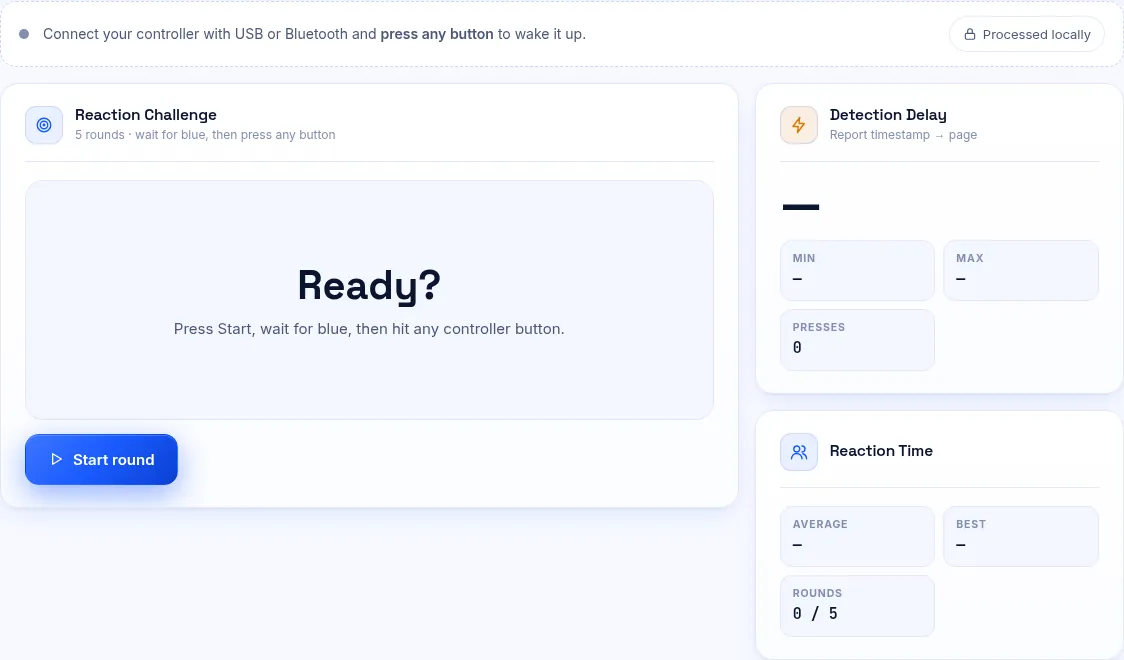
Measure before and after each change. 2Enable game mode on your display
TVs process images to look smoother, which adds delay. Game mode turns most of that off.
This is often the biggest single improvement.
Every stage adds some delay. 3Go wired
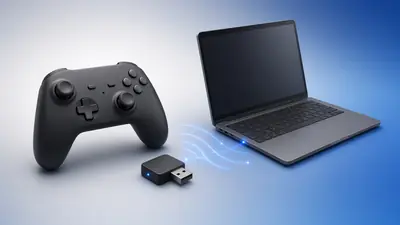
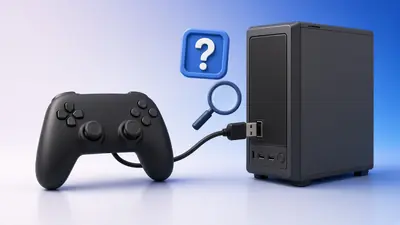
A cable removes wireless delay and interference. If you stay wireless, keep a clear line of sight to the receiver.
4Raise the frame rate
Higher frame rates show your input sooner. Lower graphics settings if needed, and turn off V-Sync where tearing is acceptable.
5Remove extra software
Overlays, recorders and remapping tools can add a little delay each. Close what you do not need.
6Update firmware
Controller updates can improve wireless latency. Use the Xbox Accessories app or Sony's updater.
What to Expect
The controller itself usually adds only a few milliseconds. Displays and frame rate often add tens of milliseconds.
Focus on the biggest sources first and you will feel the difference.
Frequently Asked Questions
Is Bluetooth too slow for gaming?
For most games it is fine. For competitive play, a cable or a dedicated 2.4 GHz adapter is better.
Does a higher polling rate reduce lag?
Slightly. Going from 125 Hz to 1000 Hz saves up to about 7 ms per report.