Xbox controllers are the easiest pads to use on Windows. Most games support them out of the box.
There are three ways to connect. Pick the one that suits your setup, then test the pad in the browser.
What you need
- An Xbox Series X|S or Xbox One controller
- A USB-C or micro-USB data cable, Bluetooth, or the Xbox Wireless Adapter
1Option 1: USB cable
Series X|S pads use USB-C; older Xbox One pads use micro-USB. Plug in and Windows sets it up automatically.
This is also the easiest way to update the firmware later.
2Option 2: Bluetooth
Turn the controller on with the Xbox button. Hold the small pair button on top until the logo flashes quickly.
In Windows, open Settings, Bluetooth & devices, Add device, Bluetooth, and choose "Xbox Wireless Controller". Only pads with Bluetooth support appear.
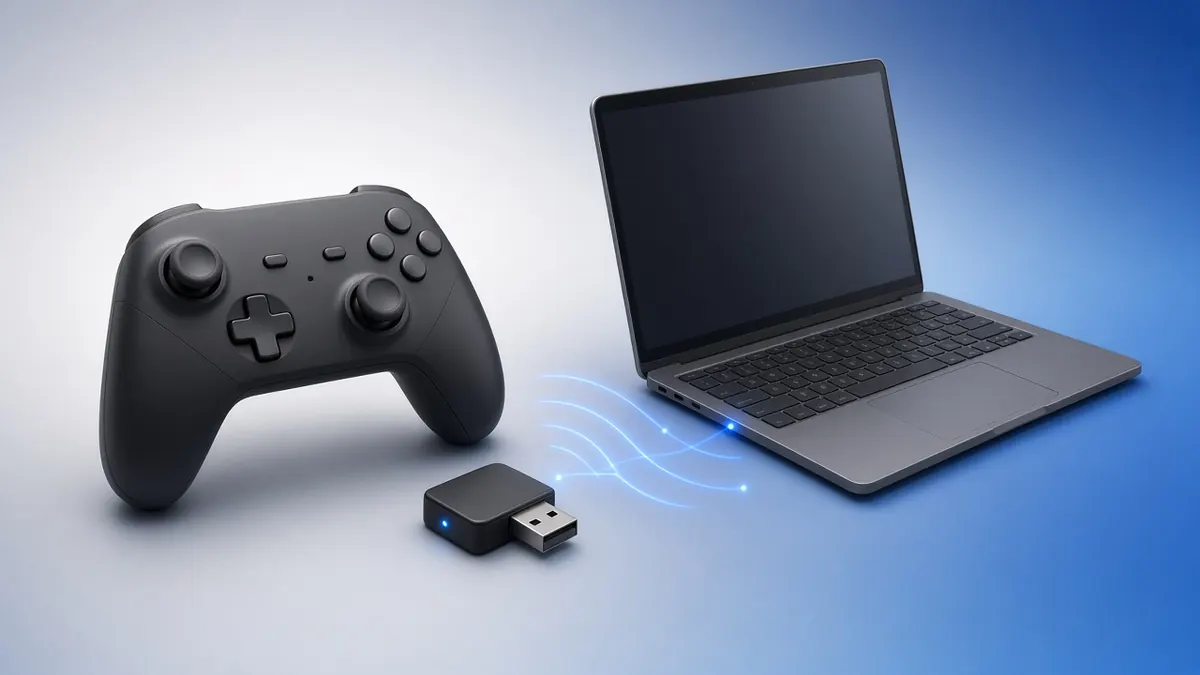
3Option 3: Xbox Wireless Adapter
Plug in the adapter and press its button. Then hold the pair button on the controller until both lights flash and stay solid.
The adapter supports up to eight controllers and headset audio through the pad.
Three ways to connect, from most to least stable. 4Test the controller
Open our Xbox controller tester and press any button. Check every button, both triggers and both sticks.
Fire the rumble presets to check the main motors and, in Chrome, the trigger motors.
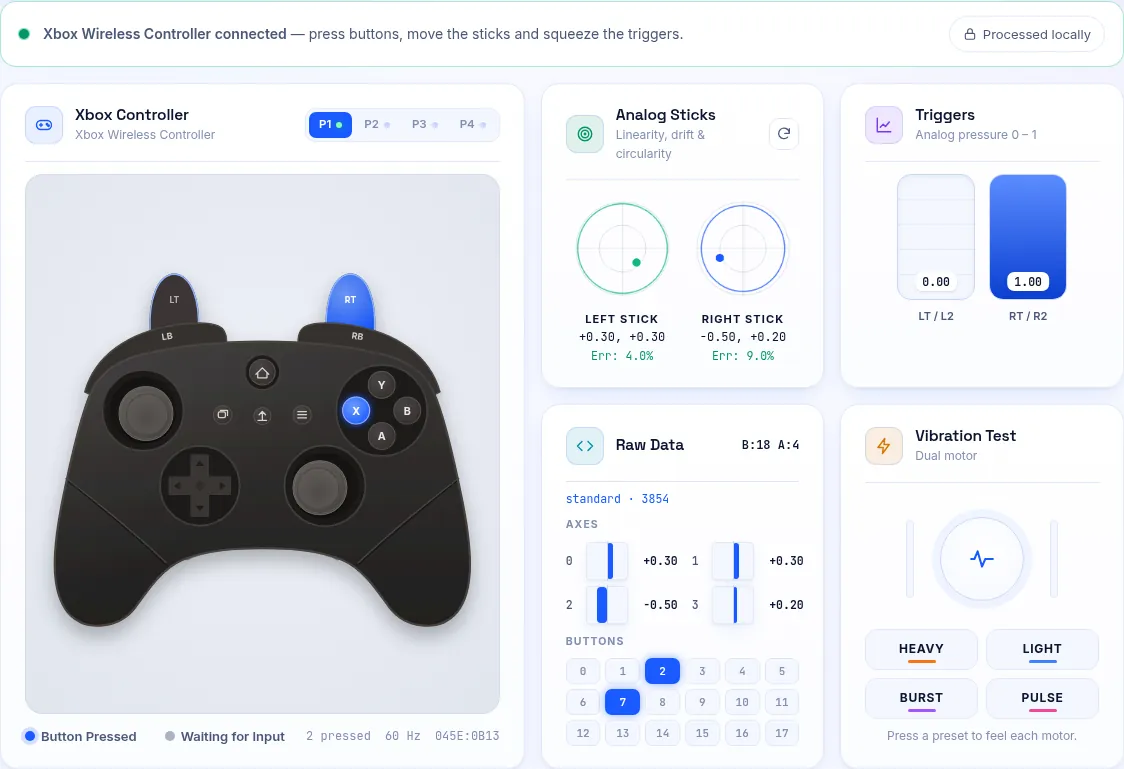
Our Xbox tester with live inputs and trigger bars. 5Update the firmware
Install the Xbox Accessories app from the Microsoft Store, connect the pad by USB and follow the update prompt.
Updates fix Bluetooth bugs and improve latency on newer controllers.
Which Connection Is Best?
For competitive play, use USB or the adapter. Both give a steady connection with low delay.
Bluetooth is fine for most games, but it shares the radio with headphones and other devices.
Frequently Asked Questions
Why does my Xbox controller keep disconnecting?
Low batteries and USB 3 interference are common causes. Update the firmware and move the adapter to a front USB 2 port or an extension cable.
Can I connect more than one Xbox controller?
Yes. The adapter supports eight; Bluetooth usually manages two or three reliably.