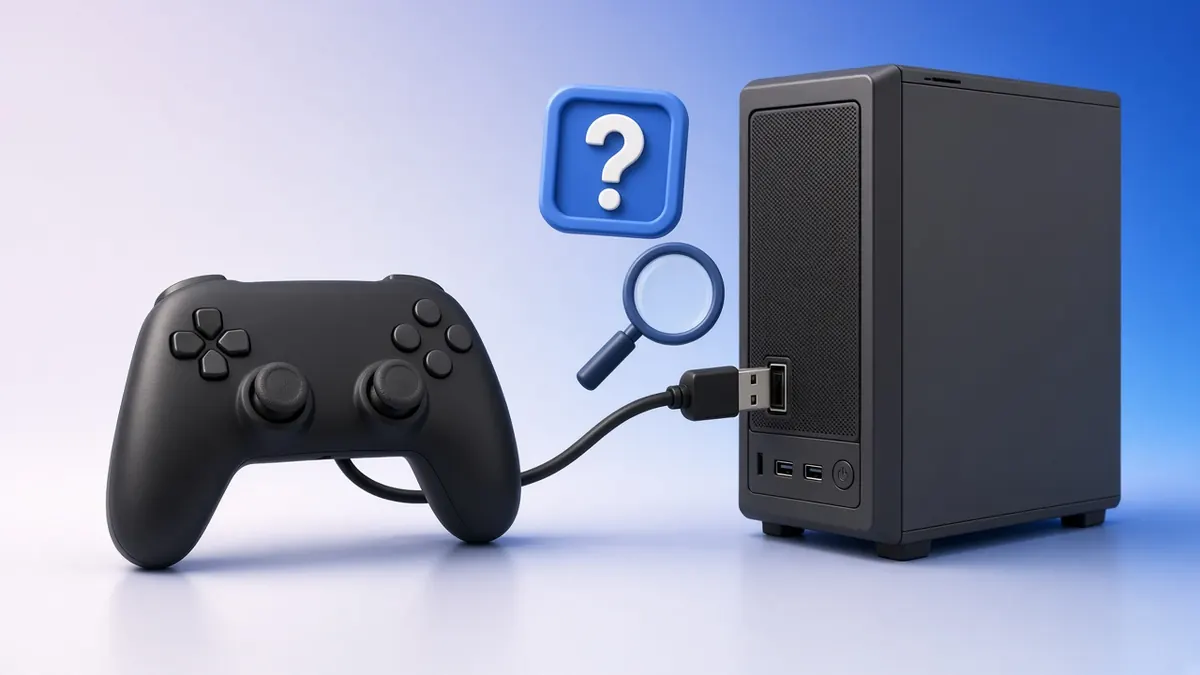
When a controller does not show up, the cause is usually simple: a charge-only cable, an app holding the device or a browser waiting for a button press.
Work through these fixes in order. Test after each one so you know which step solved it.
What you need
- The controller and a known-good data cable
2Swap the cable
Many USB cables only carry power. Try a cable you know transfers data, such as one used with an external drive.
Plug straight into the PC, not a hub or monitor port.
Charge-only cables lack the data wires. 3Try another USB port
Front ports and hubs sometimes give too little power. Use a rear port on the motherboard.
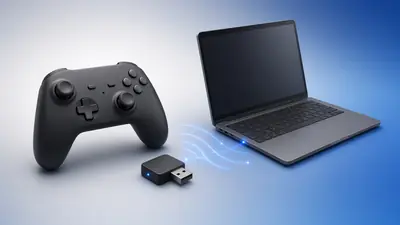
Avoid ports right next to a 2.4 GHz dongle.
4Close apps that grab the pad
Steam, DS4Windows, emulators and controller apps can take exclusive control. Close them fully, including from the system tray.
Then reload the tester and press a button.
5Check Device Manager
Open Device Manager and look under Human Interface Devices and Xbox Peripherals for warning icons.
Right-click the device and choose Uninstall, then unplug and reconnect it to reinstall the driver.
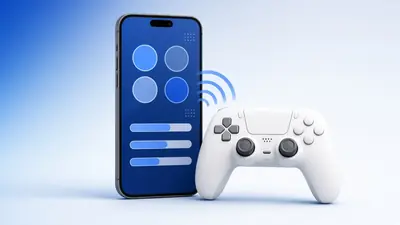
6Re-pair Bluetooth
Remove the controller from Bluetooth settings, then put it back into pairing mode and add it again.
Pair only one controller at a time.
7Update Windows and firmware
Install pending Windows updates, which include controller drivers. Update the controller with its official app.
Xbox pads use the Xbox Accessories app; DualSense pads use Sony's updater.
8Check the mode switch
Third-party pads often have X-input, D-input and Switch modes. Choose X-input for Windows.
The mode switch or button combination is listed in the manual.
9Try another browser
Chrome and Edge recognise more controllers than other browsers. The button mapping test shows whether the pad uses raw mapping.
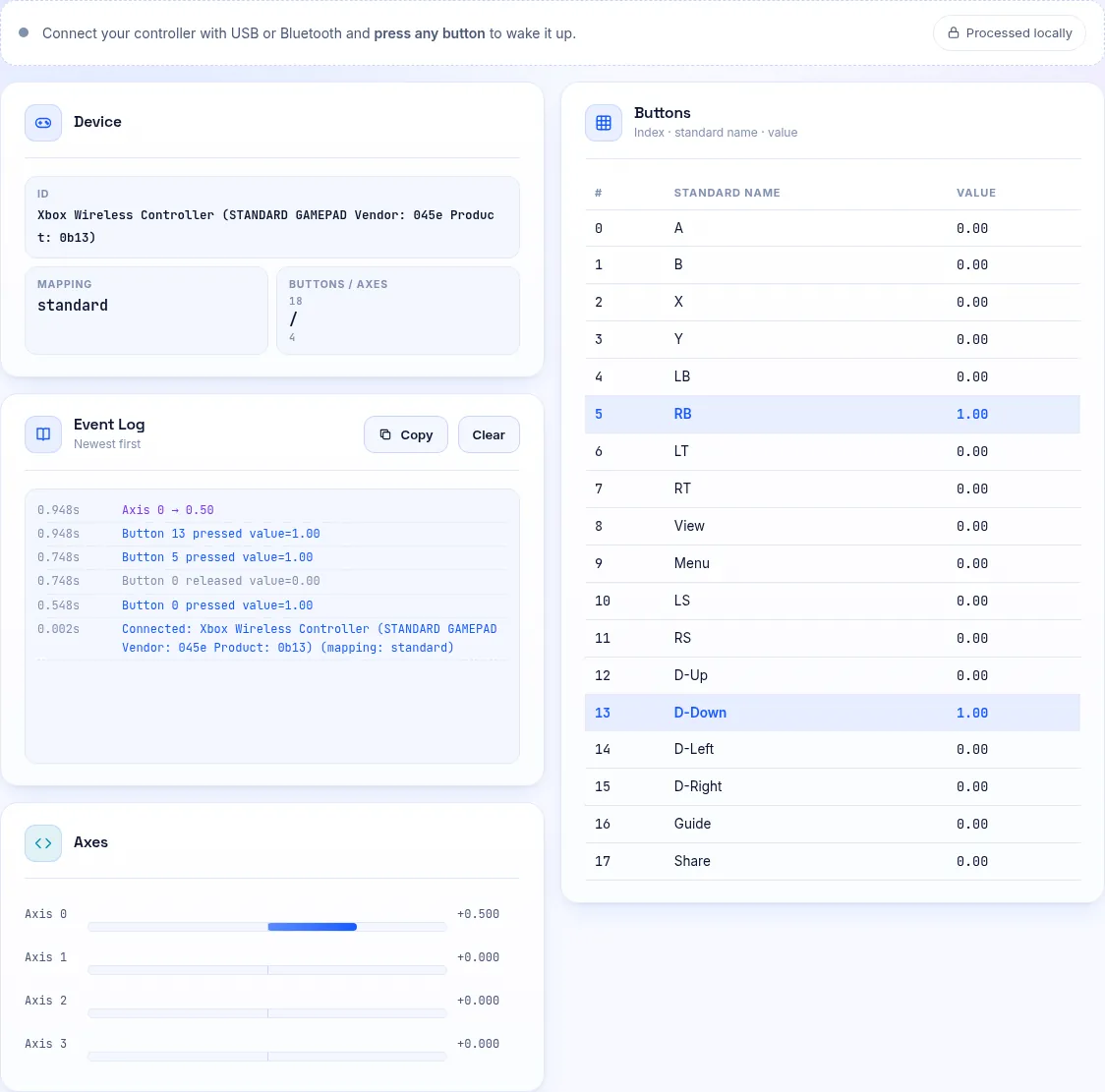
The mapping test lists every button index the browser sees. 10Test on another device
Try the controller on a phone or another PC. If it fails everywhere, the cable port or the controller board may be faulty.
Frequently Asked Questions
Why does my controller charge but not connect?
The cable is probably charge-only, or the data pins in the port are damaged. Try a different cable first.
Why does it work in Steam but not in the browser?
Steam may be holding the device. Close Steam completely and reload the page.