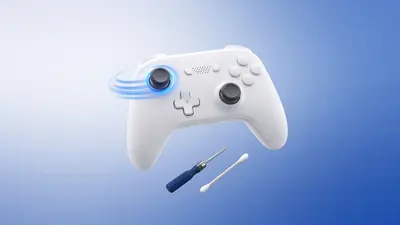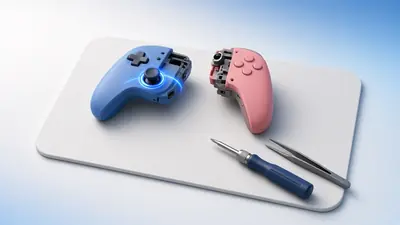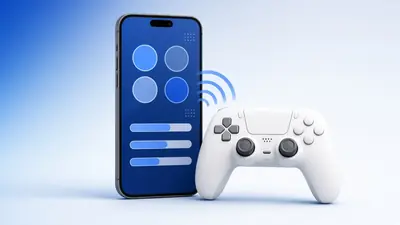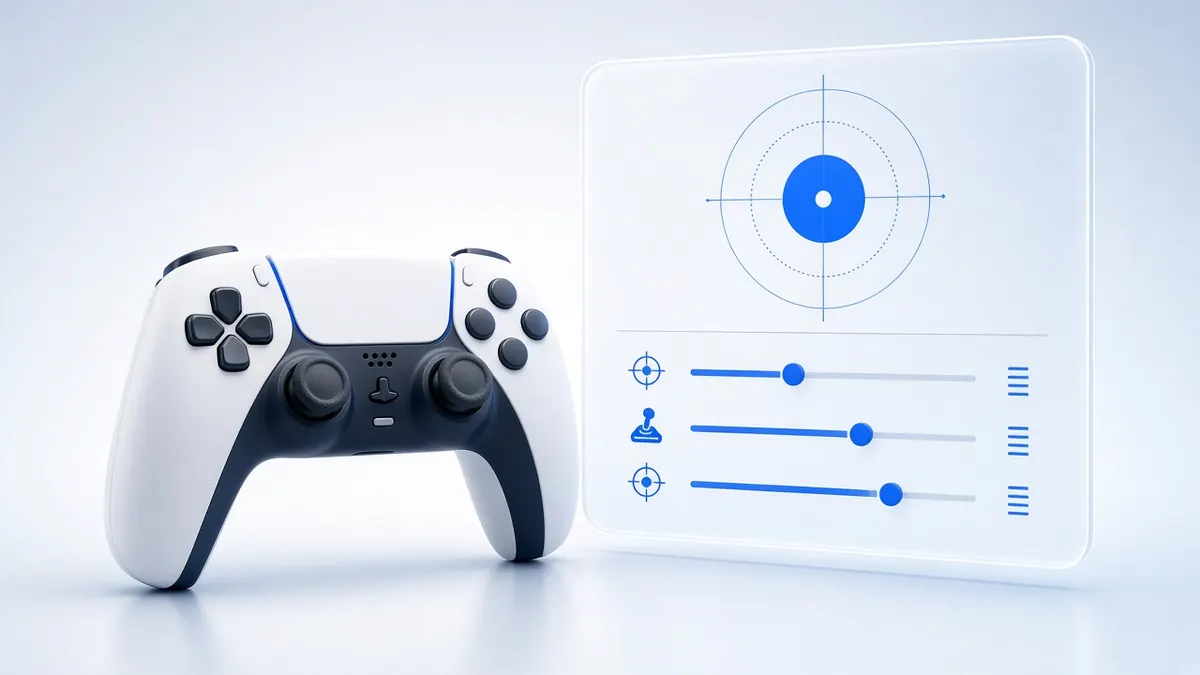
Calibration teaches the system where a stick's centre and edges are. It can fix small offsets and a range that stops short.
Not every controller can be calibrated, so start by measuring what you have.
What you need
- A Windows PC
- Optional: Steam
- The controller connected by USB
1Measure before you start
Run the stick drift test and the circularity test. Note the rest values and the circularity error.
You will compare against these numbers at the end.
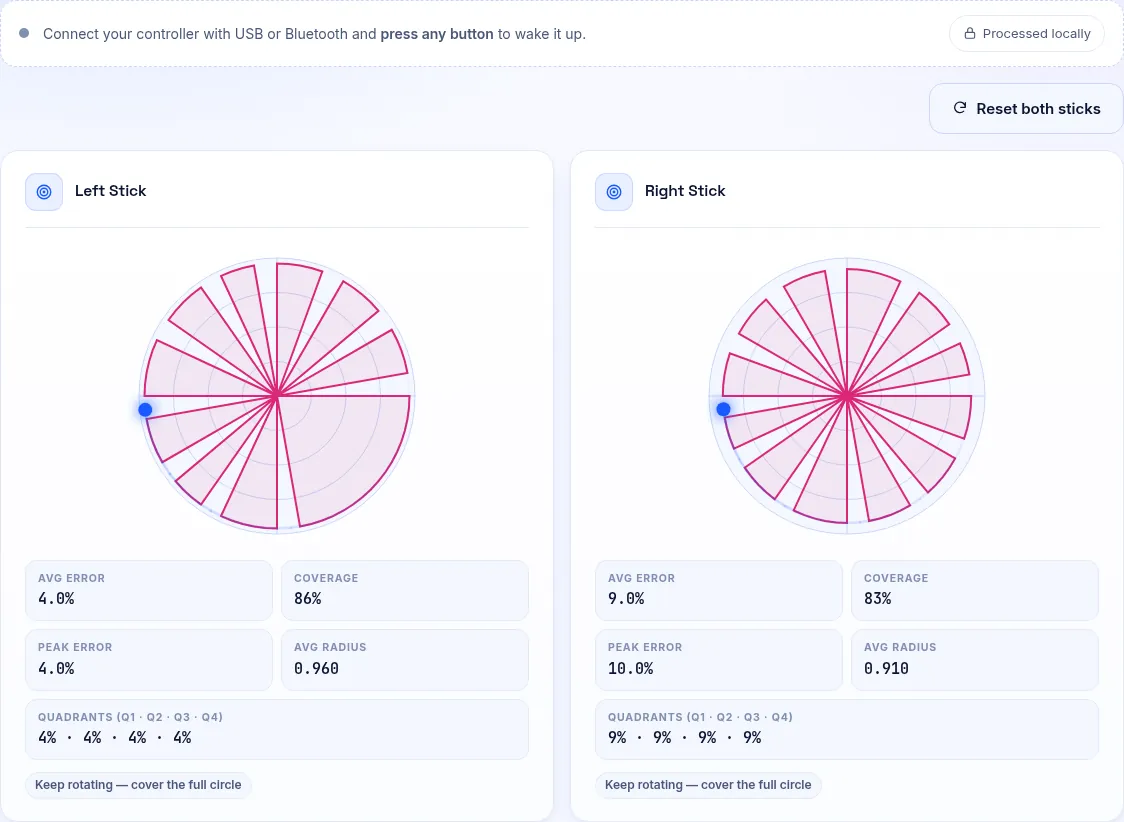
The circularity test traces your stick's real outer range. 2Open Windows Game Controllers
Press Win + R, type joy.cpl and press Enter. Select your controller and click Properties.
If a Settings tab with a Calibrate button appears, the driver supports calibration. Many DirectInput pads do; Xbox pads usually do not.
3Run the Windows wizard
Follow the prompts: leave the stick centred, then rotate it fully and press a button to confirm each stage.
Use "Reset to default" if the result feels worse than before.
Calibration records the centre first, then the full range. 4Calibrate in Steam
In Steam, open Settings, Controller, then select your controller and look for calibration and advanced settings.
Supported pads, such as PlayStation and Switch controllers, can set stick deadzones and gyro calibration there.
5Measure again
Repeat the drift and circularity tests. The rest values should be closer to 0 and the outline rounder.
Note that browser tests read the raw driver data, so Steam-only calibration may not show here.
Consoles and Calibration
The Switch has its own stick calibration in System Settings. PS5 and Xbox consoles have none for standard controllers.
For those pads, cleaning, deadzones and replacement are the only fixes for an off-centre stick.
Frequently Asked Questions
Why is there no Calibrate button for my Xbox controller?
Xbox pads use the XInput driver, which has no user calibration in joy.cpl.
Will calibration fix stick drift?
Only small offsets. Real drift changes over time, so a calibration soon goes out of date.