The Switch Pro Controller works on PC, but Windows treats it as a generic device. Steam makes it behave like any other modern pad.
Here is how to connect it and check it works.
What you need
- A Switch Pro Controller
- A USB-C data cable or Bluetooth
- Steam (recommended)
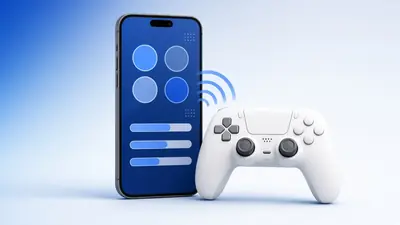
1Pair over Bluetooth
Hold the small sync button on top of the controller until the player lights run back and forth.
In Windows Bluetooth settings, add a device and choose "Pro Controller".
Pairing takes under a minute. 2Or use a cable
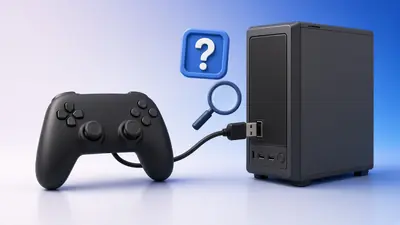
Connect with a USB-C data cable. Windows detects it as a game controller.
Steam may ask you to turn on Switch controller support.
3Test it
Open our Switch Pro controller tester and press each button. Remember that ZL and ZR are digital, so they show 0 or 1.
If buttons appear in an odd order, the button mapping test shows the raw indices.
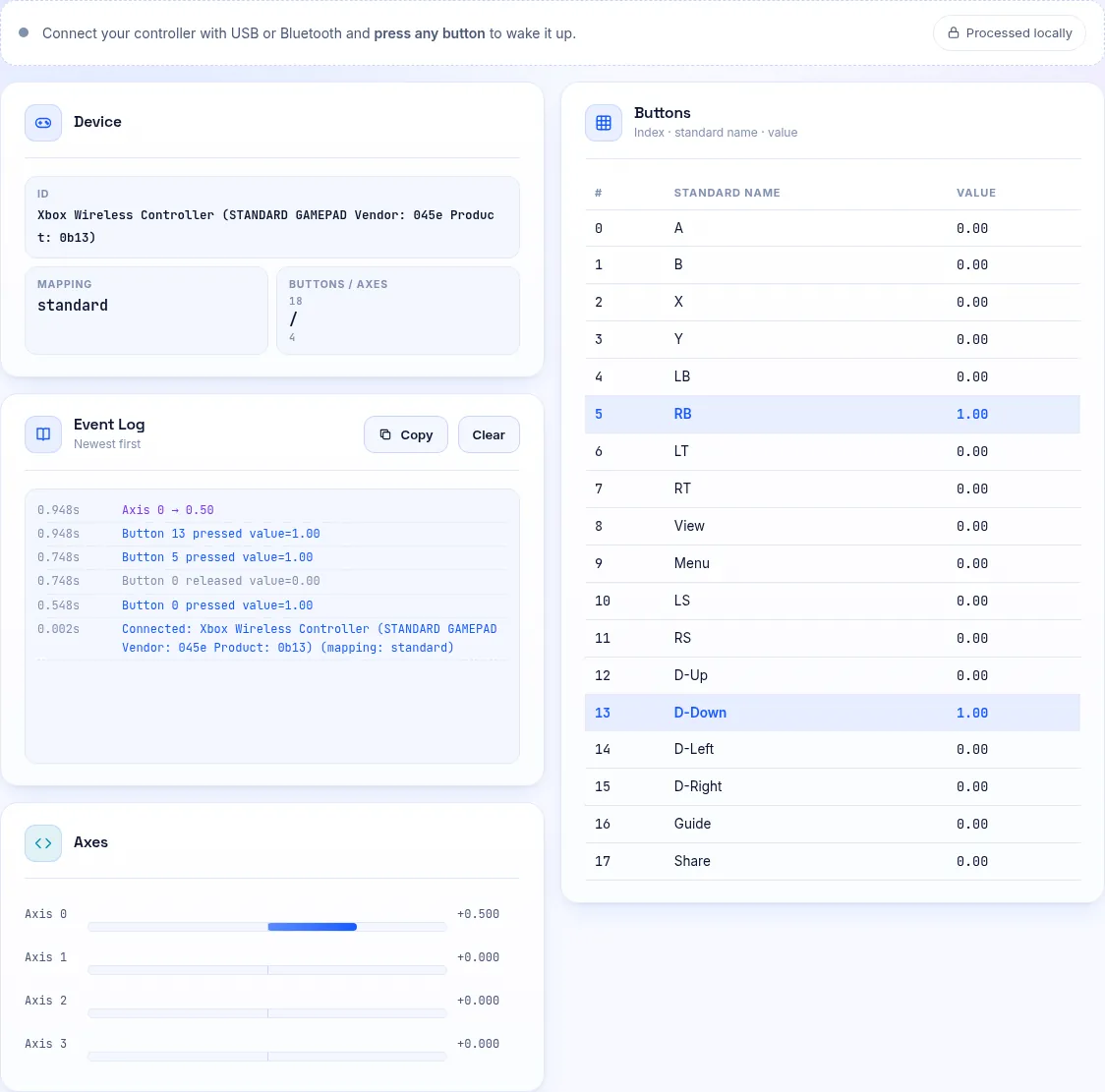
Raw indices help when a game maps buttons oddly. 4Set up Steam
In Steam, open Settings, Controller and enable support for Switch Pro controllers.
Choose whether to use Nintendo button layout or swap A/B and X/Y to match Xbox games.
Without Steam
Games that support DirectInput may work directly, but mappings vary. Tools such as BetterJoy can present the pad as an Xbox controller.
Only download such tools from their official project pages.
Frequently Asked Questions
Does the Pro Controller gyro work on PC?
Yes, through Steam Input, which can use it for gyro aiming.
Why are A and B swapped?
Nintendo places A on the right. Steam can swap the layout to match Xbox-style games.