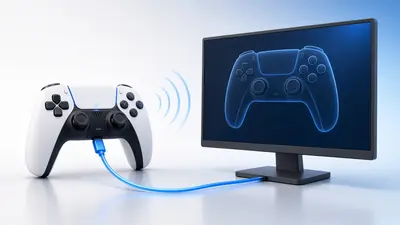
Sony releases DualSense firmware updates to fix bugs and improve wireless performance. You can install them on a PS5 or on a Windows PC.
A web tester cannot read the firmware version, but it can confirm that everything works after the update.
What you need
- A DualSense or DualSense Edge
- A USB-C data cable
- A PS5, or a Windows 10/11 PC
1Charge the controller
Make sure the battery is above about 10%. An update can fail if the pad runs out of power.
Keep the cable connected for the whole update.
2Update on a PS5
Connect the controller with the cable. The PS5 usually prompts you when an update is available.
You can also check under Settings, Accessories, Controllers, Wireless Controller Device Software.
3Update on Windows
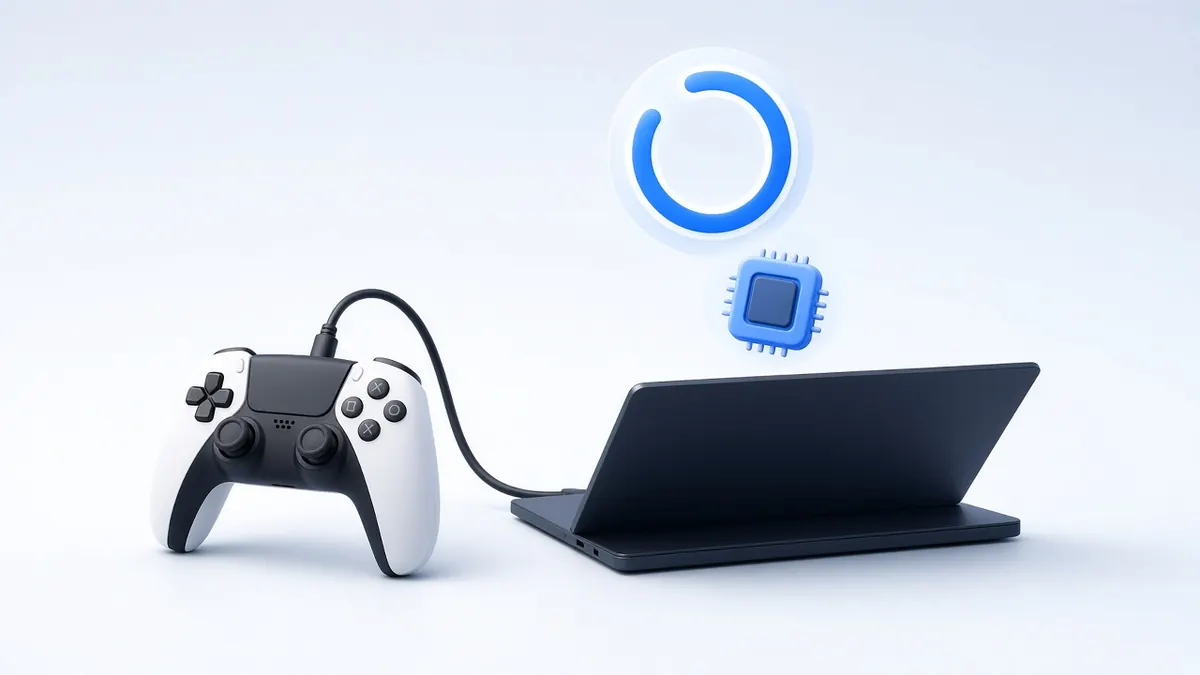
Download Sony's official firmware updater for the DualSense from the PlayStation website. Install it and open it.
Connect the controller by USB when asked and follow the prompts. Do not unplug it until the app says it has finished.
The update takes a few minutes. 4Test after updating
Open our PS5 controller tester and check every button, trigger and stick.
Connect via HID to confirm the battery reading, gyro and light bar still respond.
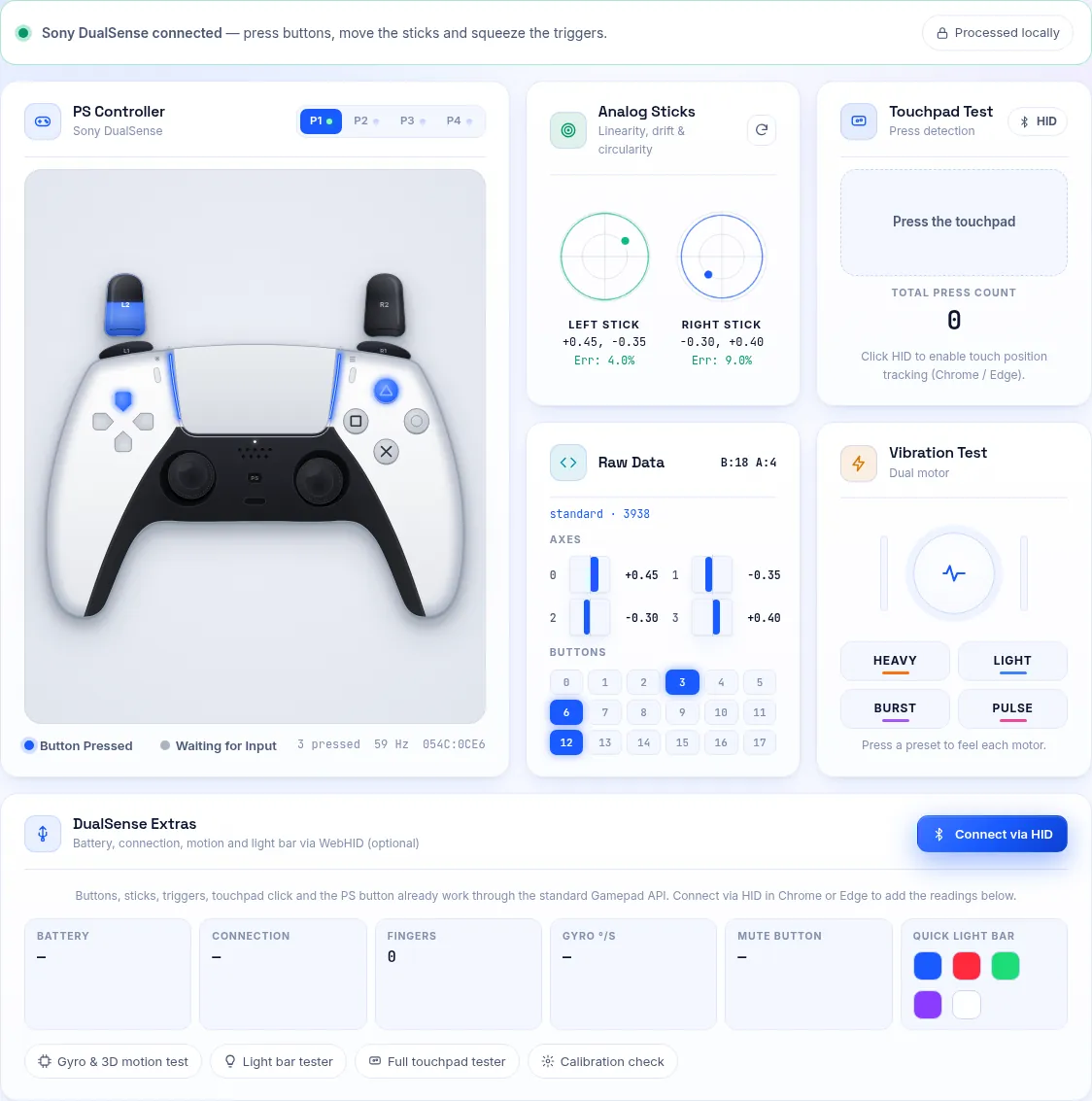
Check every input after an update.
If the Update Fails
Try another USB port and cable, then restart the updater. Avoid USB hubs during updates.
If the controller stops responding, reset it with the small button on the back, near the Sony logo, using a paperclip.
Frequently Asked Questions
Can I update a DualSense over Bluetooth?
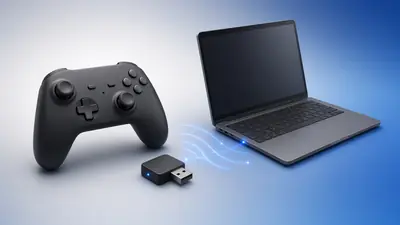
On a recent PS5 system some updates can install wirelessly, but a cable is the most reliable option.
Does updating fix stick drift?
No. Firmware cannot fix worn sensors, though it can fix software bugs that look like input problems.